

Introduction
- What a smart TV actually is
- How to unpack and install it safely
- To Wi-Fi
- How to sign into streaming apps
- How to improve picture and sound quality
- How to fix common setup problems
- YouTube
- Netflix
- Disney+
- Prime Video
- Spotify
- Web browsers
- Online video watching
- Wireless screen sharing
- Voice assistant support
- Gaming compatibility
Many families now use smart TVs for:
- Watching movies
- Online education
- Video calls
- Music streaming
- Fitness videos
- Gaming
- Smart TV
- Remote control
- Batteries
- Wi-Fi connection
- Power outlet
- TV stand or wall mount
Optional devices include:
- Soundbar
- Gaming console
- Streaming stick
- HDMI cables
Good placement tips
- outlet
- Keep close to Wi-Fi coverage
Avoid placing the TV inside fully closed cabinets because heat buildup may affect performance.
Step 2: Unbox the Smart TV Carefully
Open the box slowly and remove all protective packaging.
Important safety tips
- Do not pull the screen directly
- Use two people for large TVs
- Avoid overloaded extension boards
- Use surge protectors if possible
- Keep cables organized
This helps the TV display settings and instructions clearly.
- Select your network
- Enter the password
- Wait for connection confirmation
Slow internet can cause:
- Buffering
- Poor video quality
- App loading delays
For smoother streaming:
- Place the router closer
- Use faster internet plans
- Avoid too many connected devices
Read important sections carefully before accepting.
- Google TV account
- Samsung account
- LG account
- Roku account
Software updates improve:
- Security
- Performance
- App compatibility
- Bug fixes
If using cable or antenna connection:
- Open channel settings
- Select auto scan
- Wait for scanning to complete
This process stores available channels automatically.
Popular apps
Spotify
YouTube
Netflix
Prime Video
Disney+
How to Log Into Streaming Services
Most apps require login credentials.
Common methods
- Email and password
- QR code login
- Mobile verification
Save passwords carefully.
Step 14: Adjust Picture Settings
Default settings may not always look best.
Recommended adjustments
- Brightness
- Contrast
- Sharpness
- Color temperature
Avoid overly bright “store demo” modes.
Best Picture Modes for Beginners
Movie Mode
Natural colors and comfortable viewing.
Standard Mode
Balanced everyday viewing.
Game Mode
Lower input lag for gaming.
Ways to improve sound
- Adjust equalizer settings
- Add soundbars
- Use Bluetooth speakers
Even budget soundbars can improve audio significantly.
Connecting External Devices
Smart TVs often support multiple devices.
Common connections
- Gaming consoles
- Blu-ray players
- Laptops
- USB drives
Most devices connect using HDMI cables.
Understanding HDMI Ports
HDMI transfers:
- Video
- Audio
- High-definition content
Modern TVs usually include several HDMI ports.
Label your cables to avoid confusion later.
Basic steps
- Plug HDMI cable into console
- Connect to TV HDMI port
- Turn on console
- Select correct input source
Game Mode improves responsiveness.
Compatible devices
- Wireless headphones
- Speakers
- Keyboards
- Controllers
Some smart TVs support:
- Google Assistant
- Alexa
- Voice search
Voice commands help beginners navigate easily.
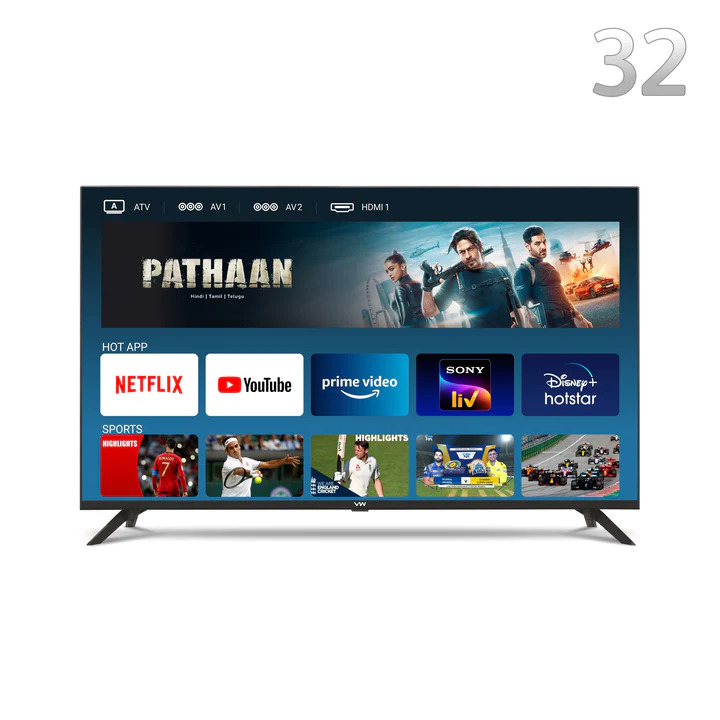
Smart TV Home Screen Explained
The home screen usually contains:
- Installed apps
- Settings
- Inputs
- Recommendations
Spend time learning the layout for easier use.
.
Keep router nearby
Distance affects signal quality.
Restart router occasionally
Common Smart TV Setup Problems
TV Not Connecting to Wi-Fi
Solutions
- Restart router
- Re-enter password
- Move closer to router
Remote Not Working
Solutions
- Replace batteries
- Remove obstacles
- Re-pair remote
Apps Crashing
Solutions
- Update software
- Clear app cache
- Restart TV
No Sound
Solutions
- Check mute settings
- Verify HDMI connections
- Restart audio device
- Use strong passwords
- Install updates regularly
- Avoid suspicious apps
- Disable unused features
Best Smart TV Features for Beginners
Screen Mirroring
Display phone content on TV.
App Store Access
Install entertainment and utility apps.
Streaming Integration
Access online content easily.
Voice Control
Safe cleaning tips
- Turn off TV before cleaning
How to Organize Cables
Messy cables create clutter.
Cable management ideas
- Cable ties
- Cable boxes
- Wall clips
General rule
Understanding Smart TV Storage
Apps and updates use internal storage.
Ways to save space
- Remove unused apps
- Clear cache
- Use external storage if supported
Smart TV Energy Saving Tips
Reduce brightness
Lower brightness saves electricity.
Enable sleep timer
Automatically turns off TV.
Turn off unused features
This improves efficiency.
Beginner Tips for Better Streaming
Use stable internet
Keep apps updated
Restart TV weekly
Helps maintain smooth operation.
Best Accessories for Smart TVs
Soundbars
Improve movie and music audio.
Streaming Devices
Useful for additional apps.
Universal Remotes
Control multiple devices easily.
Wall Mount Kits
Save room space.
Features include
- App restrictions
- Viewing time limits
- Content filtering
This helps families manage screen usage safely.
Why Beginners Should Learn TV Settings Slowly
Many smart TVs contain advanced options.
- Wi-Fi
- Apps
- Volume
- Picture settings
Then explore additional features gradually.
Smart TV vs Regular TV
Smart TV Benefits
- Internet access
- App support
- Streaming features
Regular TV Limitations
- No built-in streaming
- Requires external devices
Smart TVs provide more convenience for modern entertainment.
How Smart TVs Support Online Learning
Students increasingly use smart TVs for:
- Educational videos
- Online classes
- Presentations
- Tutorials
Large screens improve visibility and comfort.
How long does it take to set up a smart TV?
Most beginners can complete setup within 20–45 minutes depending on internet speed and app installations.
Do I need internet for a smart TV?
You can watch regular cable channels without internet, but streaming apps and online features require Wi-Fi or wired internet.
Why is my smart TV buffering?
Buffering usually happens because of slow internet speed, weak Wi-Fi signals, or network congestion.
Can I use a smart TV without a cable connection?
Yes. Many people use smart TVs only for streaming services and online content.